
Creating a Custom Report Template
-
Start by editing the default global 3-pager template or other global template
-
Customize the report by adding or modifying:
-
Sections
-
Sheets
-
Deal statistics cards
-
Text blocks
-
Images
-
Formatting options (layout, styling, etc.)
-
-
Follow the steps outlined in this article for detailed editing instructions
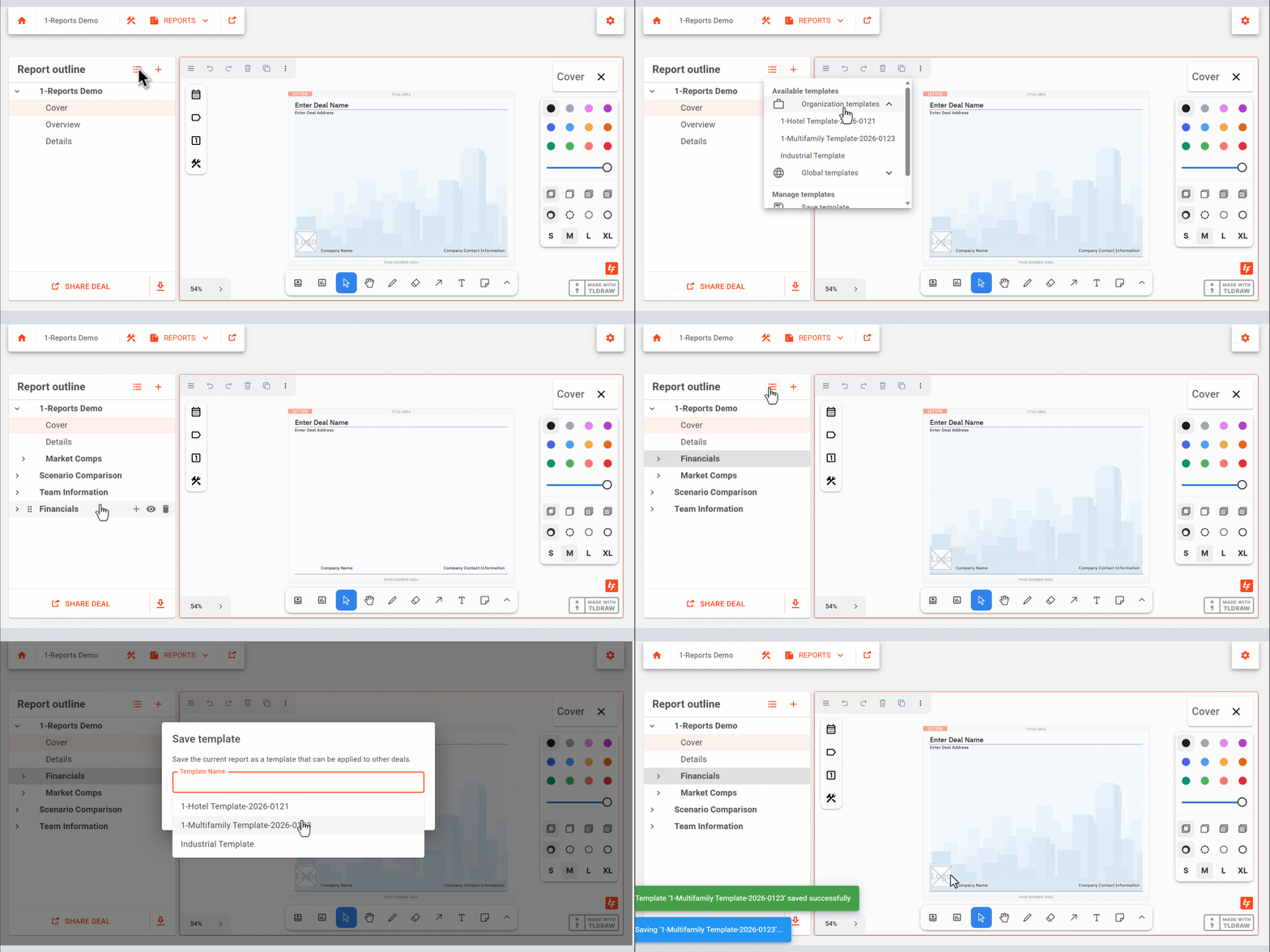
Saving a Custom Report Template
-
Open the Report Manager
-
Select Save
-
Enter a name for the custom report template
-
Optional:
-
Select an existing template and click Overwrite to replace it
-
Applying a Custom Report Template to a Deal
-
Open the Report Manager
-
Select the desired Organization template
-
Apply the template to the deal
-
Note:
-
Applying a report template will override any existing template already applied to the deal
-
Deleting a Report Template
-
Open the Report Manager
-
Select Delete Template
-
Check one or more templates to delete
-
Click
Note, organization templates can be created and utilized by any account holder in an organization that has access to edit a deal.