How to assign a pro forma output to a cell
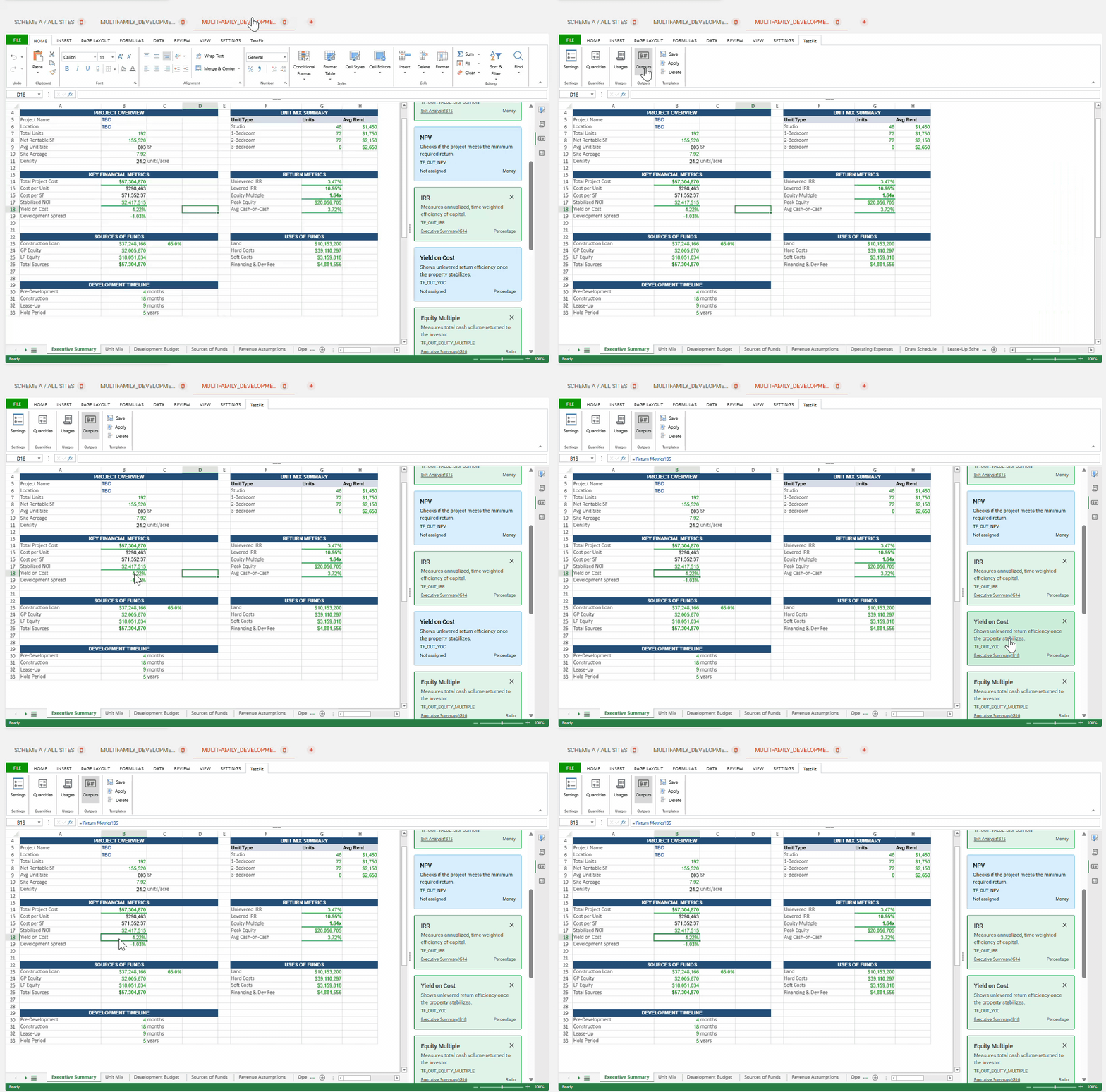
- Open your pro forma template in the TestFit Custom Pro forma and go to the sheet containing the value you want to export (e.g. Executive Summary).
- In the ribbon, click the TestFit tab.
- Click Outputs. The Outputs panel opens on the right, listing each available output as a card (NPV, IRR, Yield on Cost, Equity Multiple, etc.) with its description, output ID (e.g.
TF_OUT_YOC), and current assignment. Cards marked Not assigned are not yet linked to a cell. - In the spreadsheet, select the cell that holds the value you want to send back to TestFit (e.g. B18 – Yield on Cost).
- In the Outputs panel, click the matching output card (e.g. Yield on Cost).
- The card turns green and shows the assigned cell reference (e.g. Executive Summary!B18), confirming the link.
- Repeat steps 4–6 for any other outputs you want to expose.
- Note, outputs must be assigned to the appropriate cell in the pro forma to be able to be filtered using Generative Design.
- To remove an assignment, click the × on the card. To keep your changes in your template, click Save in the Templates group of the TestFit ribbon.
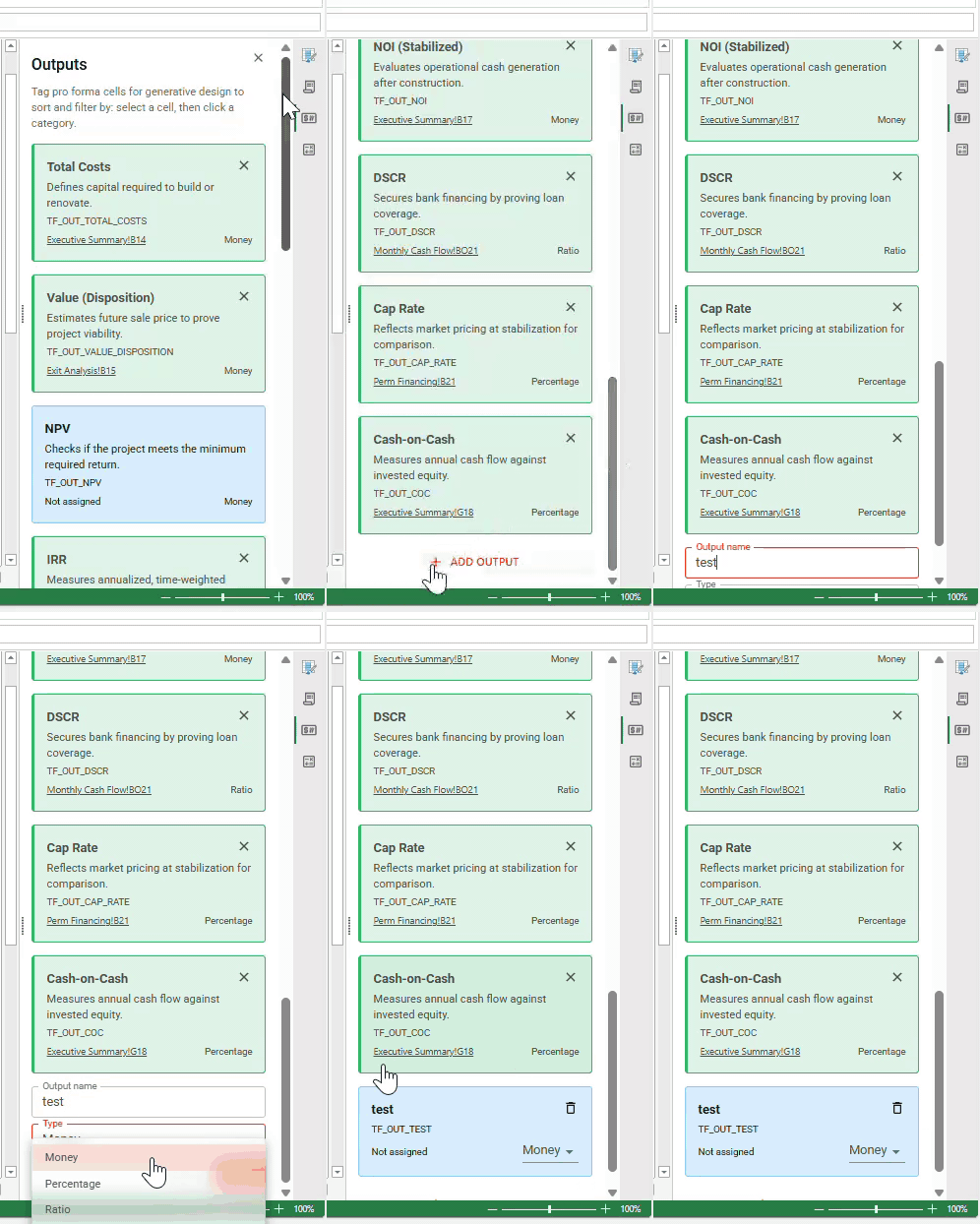
To create and add custom outputs, click on the "+ ADD OUPUT" button. Define the label for your custom output, select the type of output (money, percentage, or ratio) and assign to the appropriate cell in your custom pro forma.