
How to set a default pro forma template
Note: Only Organization Admins can set the organization's default pro forma template. The star icon is not editable to other users.
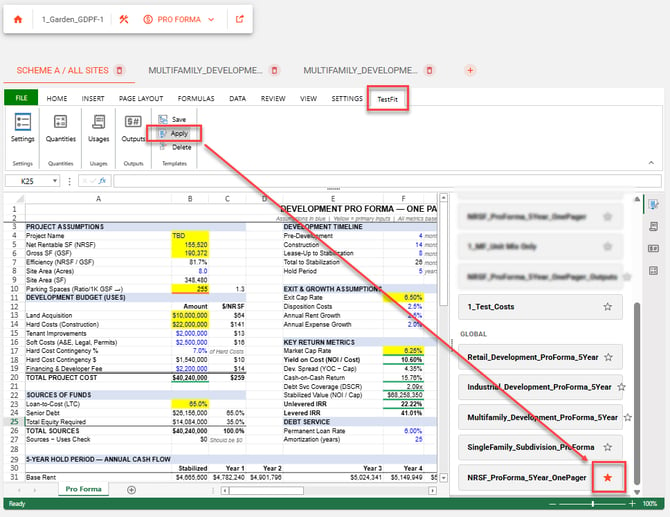
- Open a deal and click Pro Forma in the top toolbar to launch the pro forma editor.
- In the ribbon, click the TestFit tab.
- In the Templates group, click Apply. The Templates panel opens on the right, listing your saved templates under your organization's section and TestFit's built-in templates under Global.
- Find the template you want to make the default — either one of your organization's custom templates or a Global template.
- Click the star icon next to the template name. The star fills in orange to confirm it's now the default.
- Going forward, new deals across your organization will open with this template applied automatically.
To change the default later, click the star on a different template. Only one template can be the default at a time.
The default custom pro forma will be the pro forma Generative Design initially references for anyone in your organization.