Each company has an “Everyone” group created by default that represents all members within their organization. This group can be used to quickly update permissions for specific Deal Pipelines, Deals, or Assets for all users company-wide.
By default, the “Everyone” group is given “Editor” access to the organization’s Deal Pipeline directory which allows all users to create folders in the directory as well as save deals and assets.
Creating a Group
Group Admins will have access to the “Groups” icon and text link in the navigation menu.
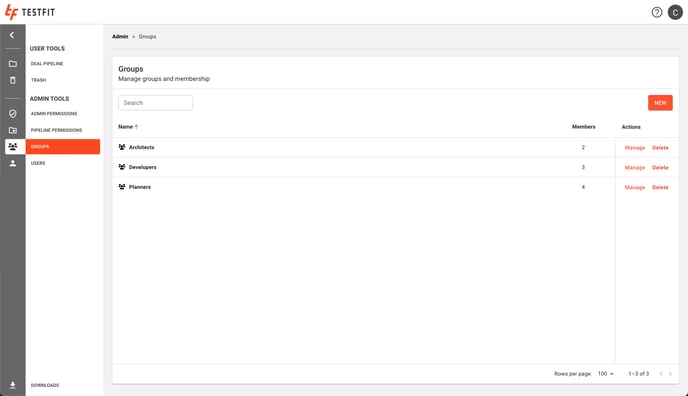
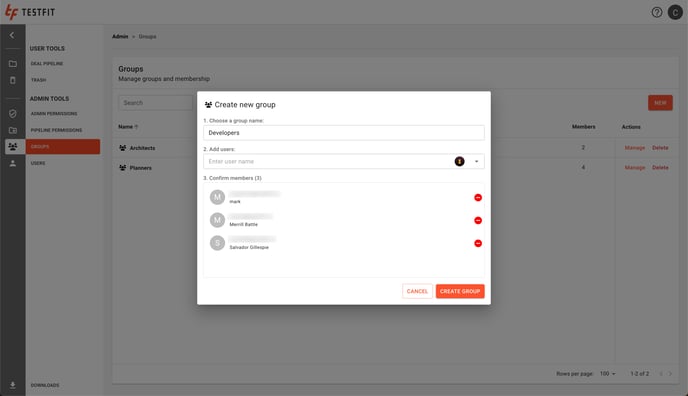
Clicking the “Create New Group” button will prompt users with the following pop up to create a new group.
Managing a Group
Group admins have the ability to add or remove members as necessary. This can be accomplished by clicking the “Manage” link associated with a given group.
This will prompt users with the “Edit Group” pop up displaying a list of existing group members.
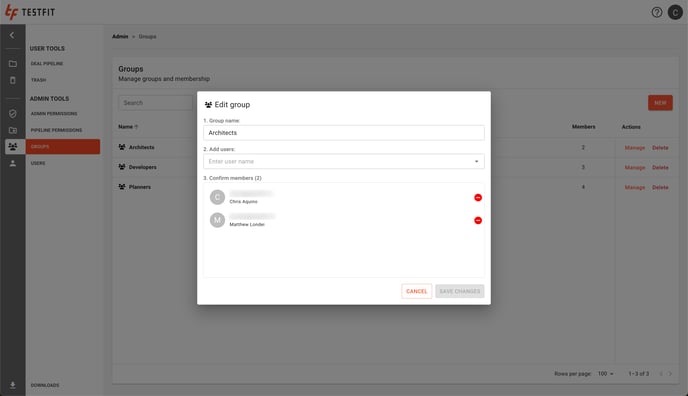
Users can be removed from groups by clicking the red icon associated with the member’s name.
New members can be searched and added by entering a user’s name in the “Add users” field and selecting the given user from the auto-suggested list.
Deleting a Group
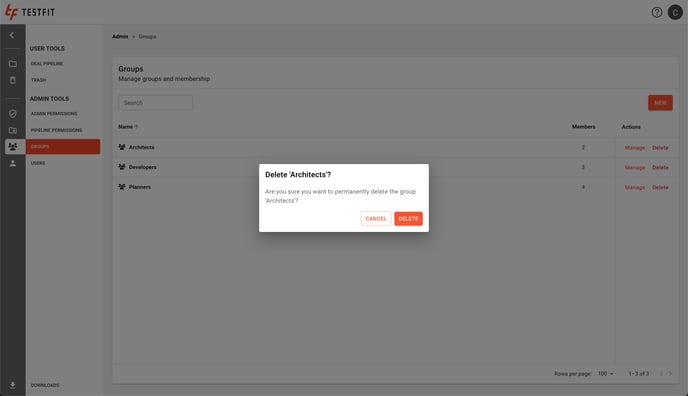
Group admins also have the ability to delete groups as necessary. This can be accomplished by clicking the “Delete” link associated with a given group.
Note: Deleting groups will not delete the users in the group from your drive.