
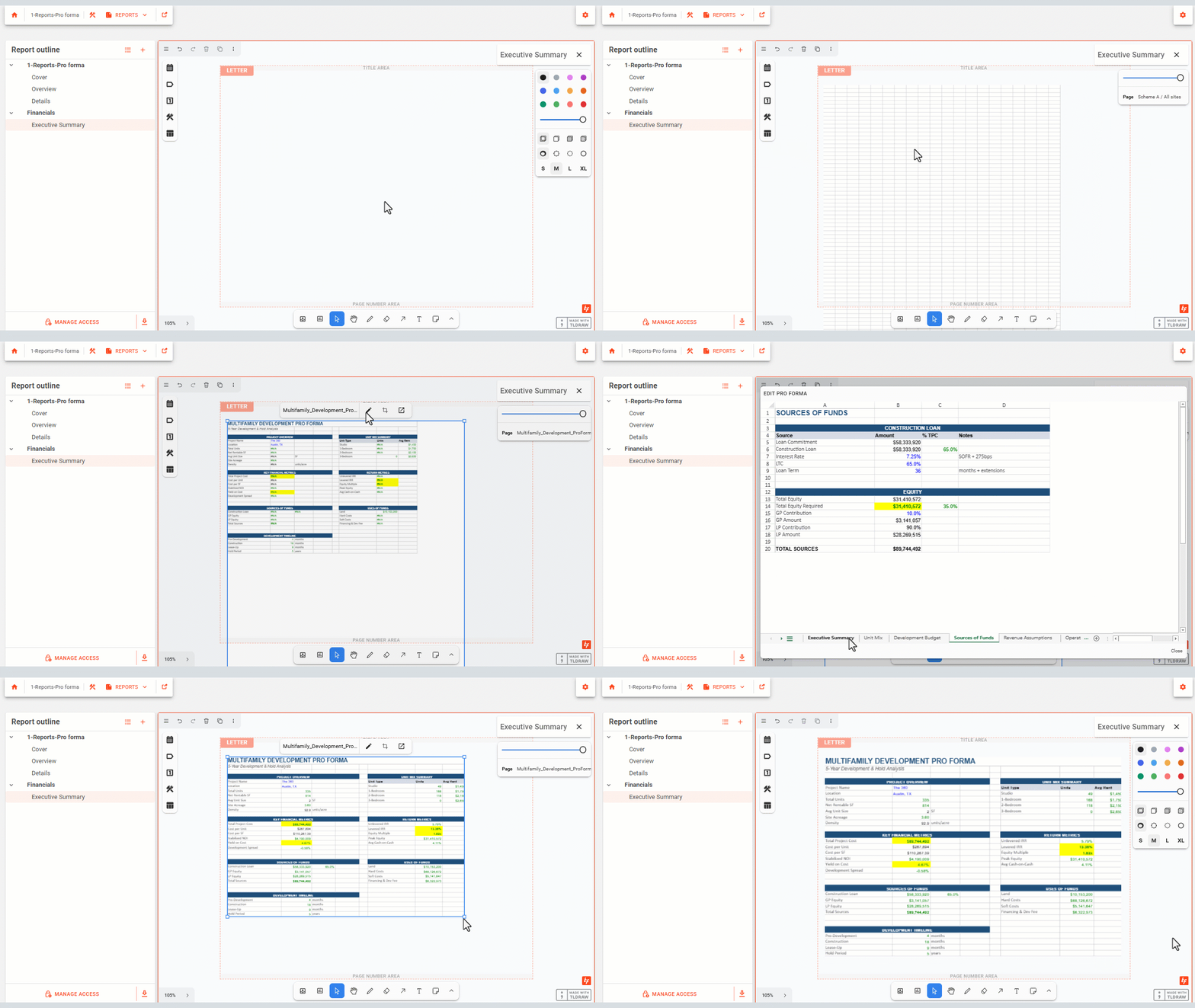
Navigating to the Sheet
In the Report outline panel on the left, expand the desired section and select the sheet you want to add the Pro Forma view to.
TIP: To add a new section or sheet to your report outline, select the + icon at the top of the Report outline panel. See How to Create and Share a Deal Report for full instructions on managing sections and sheets.
Placing a Pro Forma Viewport
Select the Pro Forma icon from the left-side toolbar on the sheet canvas.
Click and drag on the sheet canvas to define the size and position of the Pro Forma viewport. Release to place it.
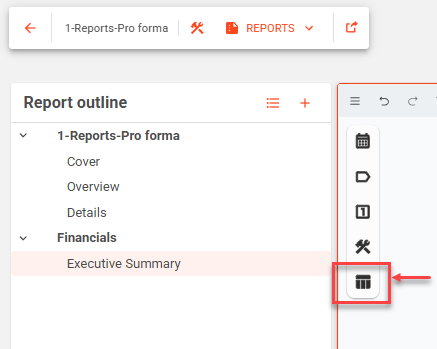
Select a Pro Forma to assign to the Pro Forma Viewport
Select the Pro Forma to assign to the Pro Forma Viewport from the pro formas created in the Custom Pro Forma tool.
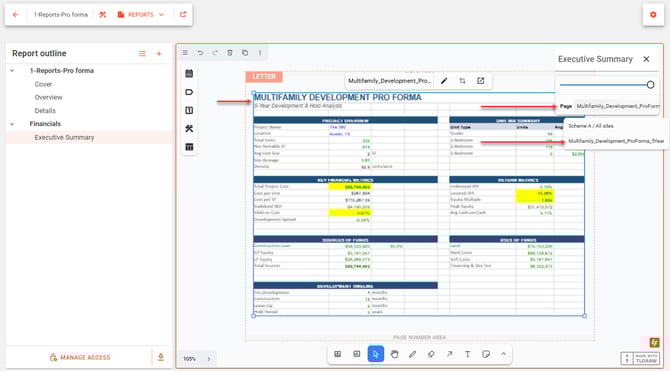
Editing the Pro Forma Viewport
Click on the edit button to activate the pro forma withing the pro forma viewport.
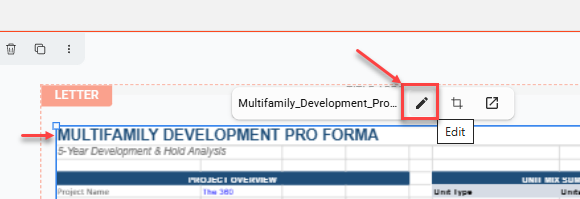
Once activated, edit the pro forma, then click close to return to Reports.
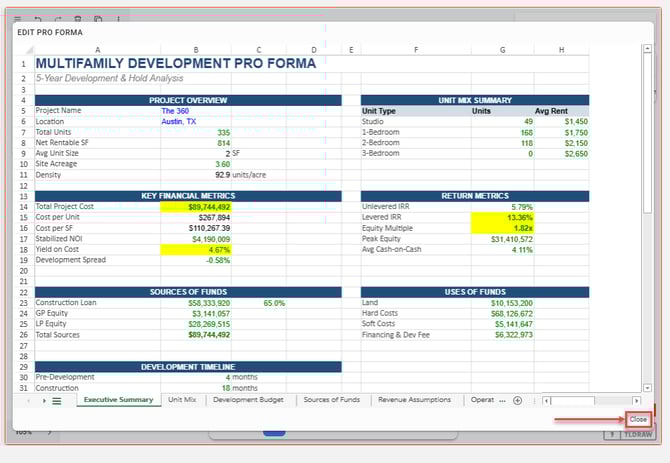
Note, pro forma viewports can be cropped as desired to edit and reflect key deal metrics on a sheet within a feasibility report.