
Key Difference
-
Mass Based Presets: Unlimited use. You apply them to define basic building shapes/objects on a site.
-
Premium Presets: High-detail typologies. Each use consumes one credit.
Make sure you've read the article about creating a site.
Massing Presets
You can create an unlimited number of deals if only massing presets are used in your deal.
To apply a massing preset, follow these steps:
- Click the Preset Selector at the end of the Site layer.
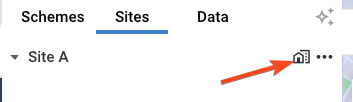
- The Generative Design & Preset Panel will slide out of the right side of your screen.
- Click the Hide Premium Presets button.
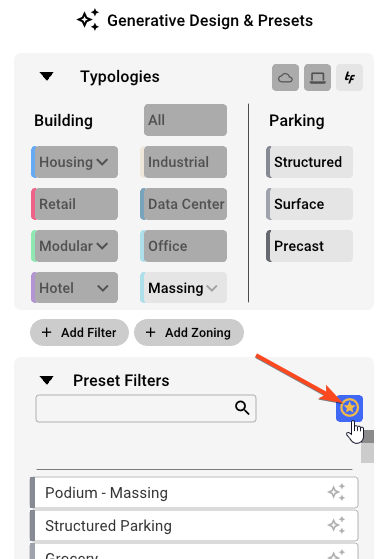
This will enable the Massing and Parking Presets only These presets do not consume a credit.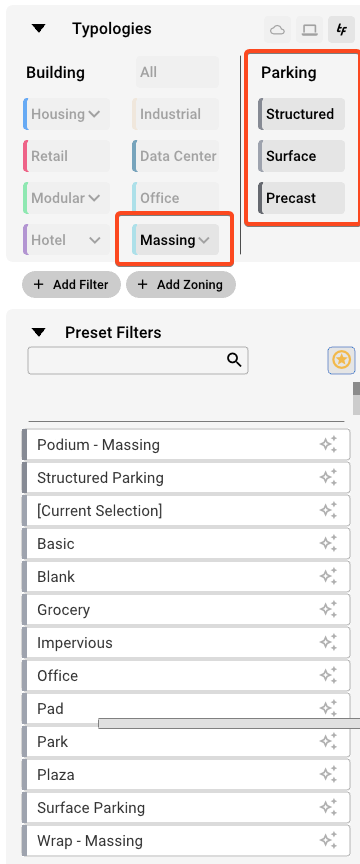
Premium Presets
To apply a Premium preset in your site, follow these steps:
- Click the Preset Selector at the end of the Site layer.
- The Preset Panel will slide out of the right side of your screen.
- Filter the desired Building Typologies (you may need to click the show premium presets button if previously enabled).
- Housing
- Retail
- Modular
- Hotel
- Industrial
- Data Center
- Office
-
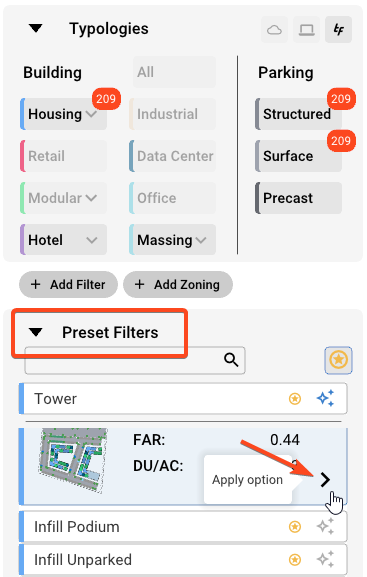
Select the preset you want to apply to your site from the Preset Filter list and click the Apply option arrow.
-
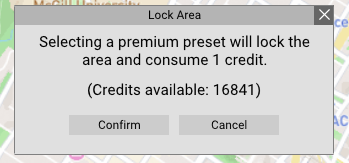
You are now prompted to Lock Area and consume a credit. Click Confirm.
Take a look at this article to explore the Building Typologies.
You can now create addition sites within the locked area without consuming any additional credits