
Follow the process to maximize TestFit's Generative Design capabilities
Step by Step Guide:
- Create a site. Follow the steps in the Define a Site article.
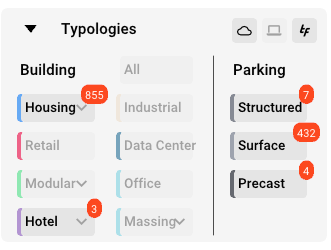
- Define your typology specifications, and If desired, select specific presets to be used in the generative design process (details in step 4) . Include deals saved to the cloud if desired.
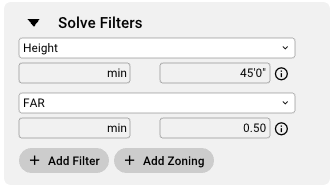
- If there is zoning information available, Zoneomics will provide and apply zoning metrics to your Solve Filters drop down . You can add/apply additional filters by clicking the + Add Filter button.
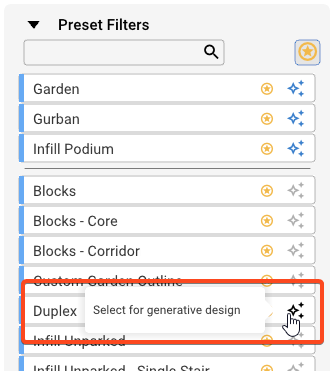
- If you know what preset you want to use, select it from the Preset Filter list.
- Consult the All Solves list to review results
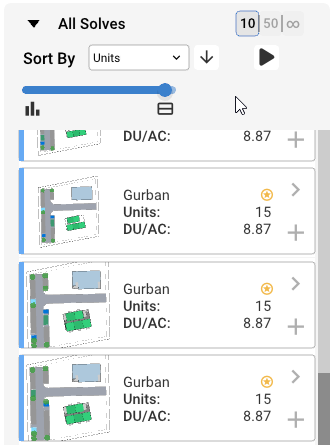
- Solves that contain values in red surpass your desired filters but may be acceptable for you within the solve.
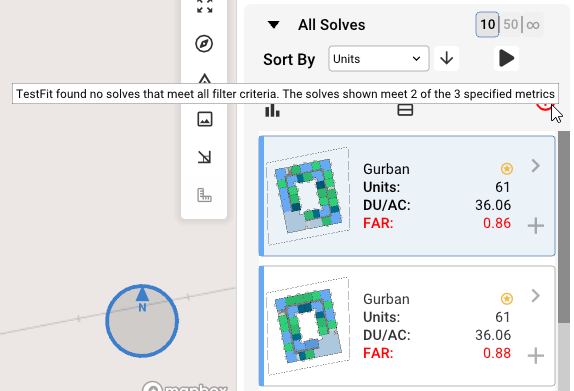
- Apply a solve or add a scheme from the All Solves list. This will prompt you to consume a credit and will need to be done to continue working with Generative Design.
-
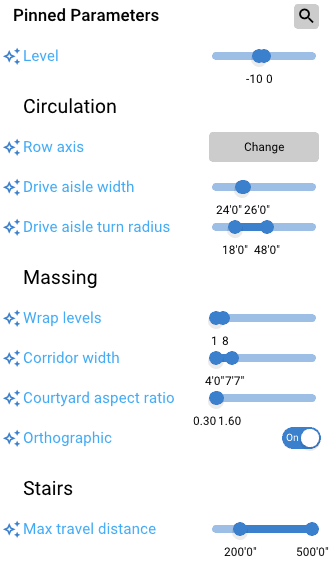
The Pinned Parameters panel will now be visible and adjustments can be made for a more specific fine-tuned solve list.
-
Create multiple schemes with potential solves you'd like to compare.